스크린샷 미화기
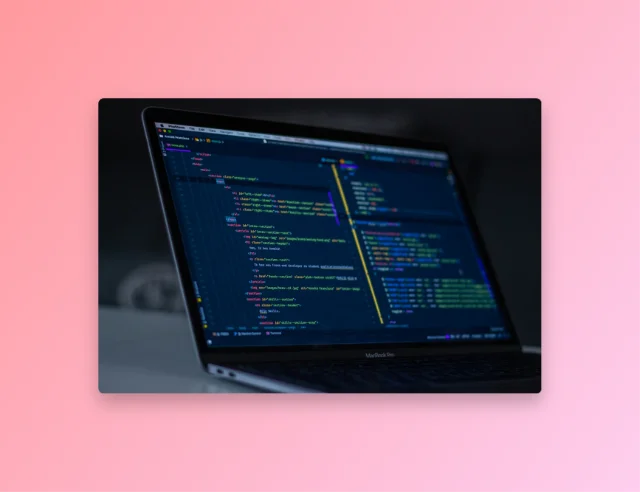
지루한 스크린샷을 소셜 미디어용 멋진 그래픽으로 변환하세요. 이미지를 붙여넣고, 아름다운 배경, 부드러운 그림자, 둥근 모서리를 적용하고, 초고화질로 다운로드하세요.
설정
스크린샷 붙여넣기
스크린샷을 찍은 뒤 이 페이지에서 Ctrl+V(Mac은 Cmd+V)를 누르세요. 왼쪽에서 파일을 선택해도 됩니다.
소셜 미디어용 스크린샷을 아름답게 만드는 방법
1붙여넣기 또는 업로드
이 페이지 어디서나 Ctrl+V를 눌러 클립보드에서 직접 스크린샷을 붙여넣으세요! 또는 여러 이미지를 한 번에 업로드하여 일괄 편집하세요.
2결과물 스타일 설정
아름다운 macOS 스타일 그라데이션 또는 단색에서 선택하세요. 이미지에 여유를 주도록 패딩을 조정하고 그림자를 사용자 지정하세요.
3이미지 다운로드
다운로드를 클릭하세요. 여러 파일을 업로드한 경우 동일한 아름다운 미학이 모두 적용되어 즉시 압축 파일로 묶어집니다.
Why Raw Screenshots Look Terrible
Nobody really wants to look at a raw screenshot. They're flat, they have sharp, ugly edges, and they blend into whatever page they're sitting on. It's like handing someone an unframed photo, technically it works, but it looks like you didn't care. And on the internet, looking like you don't care means people scroll right past.
Social Media Is a Visual Game
Scroll through Twitter or LinkedIn for five minutes. The posts that actually stop you? They almost always have a well-framed image. A plain screenshot on a white background is invisible. But take that same screenshot, throw a gradient behind it, add some padding and a soft shadow. Suddenly it looks intentional. People notice. We've watched indie devs build entire followings partly just by making their screenshots look consistently good.
Docs and Tutorials Need It Too
If you write documentation or tutorials, unstyled screenshots make the whole page feel cheap. A screenshot with a consistent background and some breathing room is instantly easier to parse, the UI you're documenting pops instead of bleeding into the surrounding text. Small thing, big difference.
App Store Screenshots Are Basically Ads
Your app store listing is a landing page. Those screenshots? They're your ad creative. Studies suggest well-styled screenshots bump download conversion by 20-35%. We built bulk processing specifically for this, apply the same look to 5-10 screenshots, download them all as a ZIP, and upload straight to App Store Connect or Google Play Console.
Code Screenshots Are Their Own Genre Now
Sharing code as a screenshot (instead of a gist link) has become a whole thing in dev communities. Dark editor theme, syntax highlighting, colorful gradient background. It turns a code snippet into something people actually want to share and engage with. It's the difference between a link people skip and a visual they retweet.
Our Favorite Gradient Combos
Pink-to-Purple for Consumer Products
We've found that pink-to-purple gradients work best for consumer products, app screenshots, and anything you want to feel energetic and modern. Orange-to-pink is great too if you want warmth. For dev tools or B2B stuff? Stick with blue-to-indigo or teal-to-purple. It reads as more technical without being boring.
Don't Skip the Padding
This is the single most common mistake we see: people cram the screenshot right to the edge. Give it some room to breathe. Something like 8-12% padding on each side makes a massive difference. Designers call it "negative space". We just call it not looking cramped.
Round Those Corners
Sharp corners on screenshots feel very 2012. Every modern OS uses rounded corners now (iOS, macOS, Android), so your screenshots should match. We usually go with 8-16px corner radius, enough to look current without going full bubble.
Shadows: Soft, Not Harsh
A good shadow makes the screenshot float. A bad one makes it look like a PowerPoint clip art. Go soft: 20-30% opacity, 20-40px blur radius. You want people to barely notice the shadow consciously. It just makes the whole thing feel like it has depth.
Frequently Asked Questions
What actually makes a screenshot look good?
Four things, and they're all simple: a background that isn't white (gradient or a solid color), enough padding so the content isn't jammed to the edges, a soft shadow for depth, and rounded corners. That's it. We apply all four automatically. You just upload and go.
Can I just paste from my clipboard?
Yes, Ctrl+V on Windows/Linux, Cmd+V on Mac, and it works anywhere on the page. That's much faster than saving a file, finding it in your downloads folder, then uploading it, especially when you're iterating on a design and taking screenshot after screenshot.
What about bulk processing?
Upload a bunch of screenshots at once and they all get the same treatment, same background, padding, shadow, corners. When they're done, you download one ZIP file. We built this mostly for people doing app store listings or documentation sets where consistency matters.
What resolution will my output be?
It's based on your input resolution plus whatever padding gets added. Pro tip: take your source screenshots at 2x (Retina) resolution. That way the final export looks sharp on both regular and high-DPI screens.
Can I customize the gradient backgrounds?
We have a bunch of preset gradients that we think look great (inspired by macOS and some popular design systems). You can also just pick a solid color if gradients aren't your thing. Everything updates in real time in the preview, so you can try a few before committing.